AI Video Generators for Music: How to Pick One That Actually Syncs to Your Track

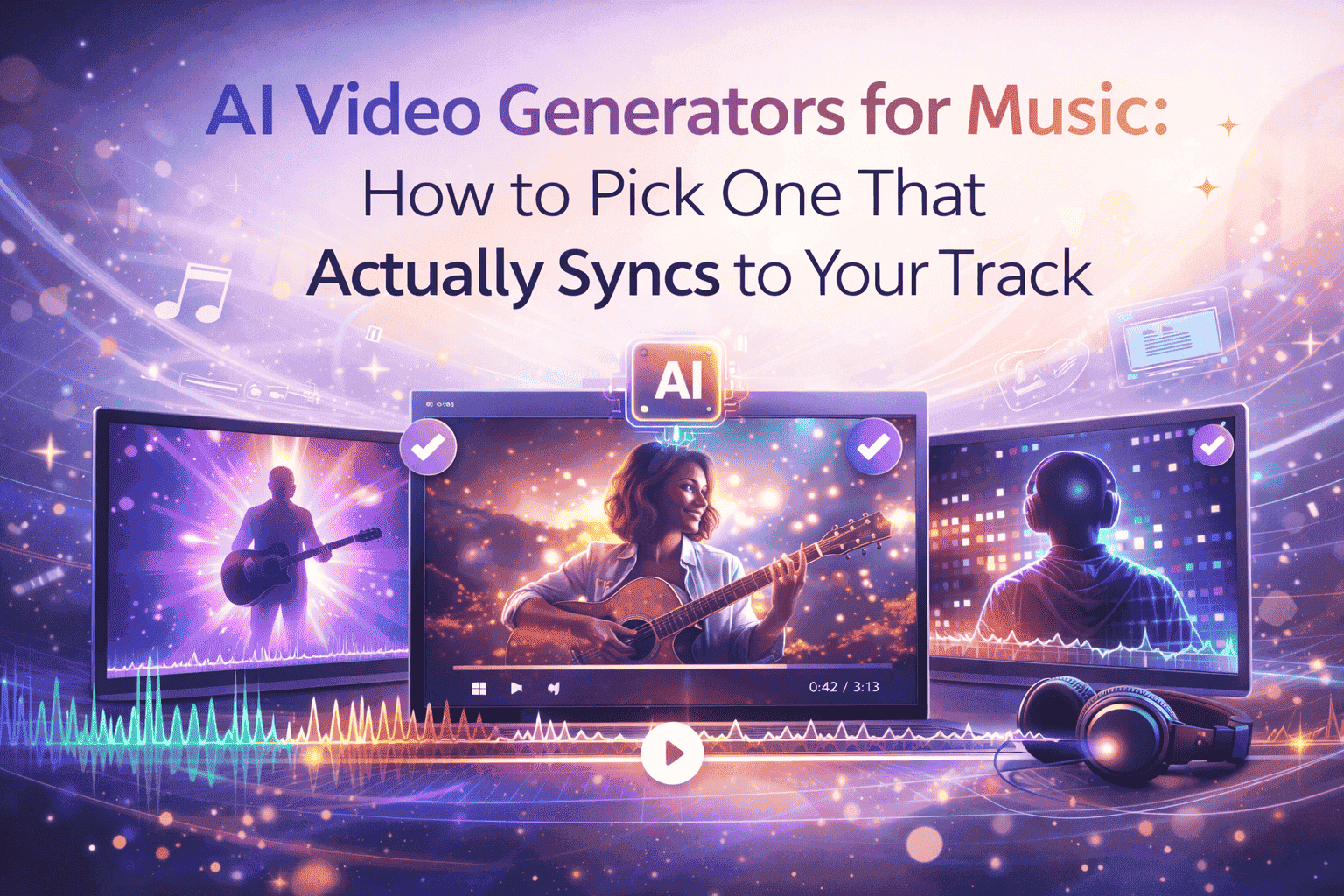
You’ve bounced the mix, hit export, and grinned, then remember that in 2026 a silent track disappears with one thumb-flick. You open an AI music-video generator; neon blooms, the chorus drops… and the visuals trail half a beat. This guide shows you how to choose a tool that stays locked to the grid, test its sync in 20 minutes, and nudge any drift so every snare, lyric, and bass hit lands exactly where listeners feel it.
Choosing The Right Type Of AI Music-Video Generator
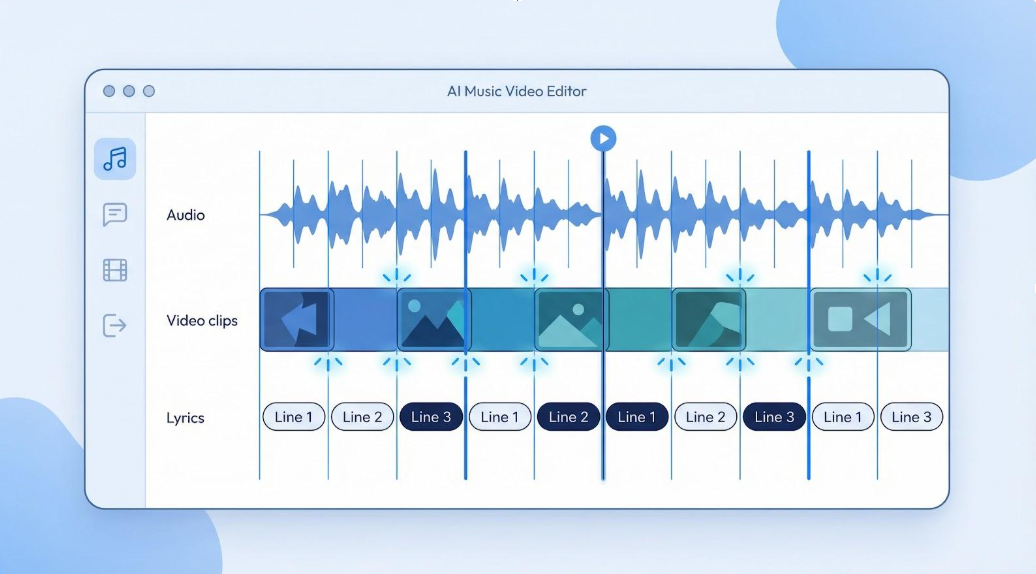
A DAW-style timeline shows how AI can keep audio, visuals and lyrics locked tightly to the musical grid
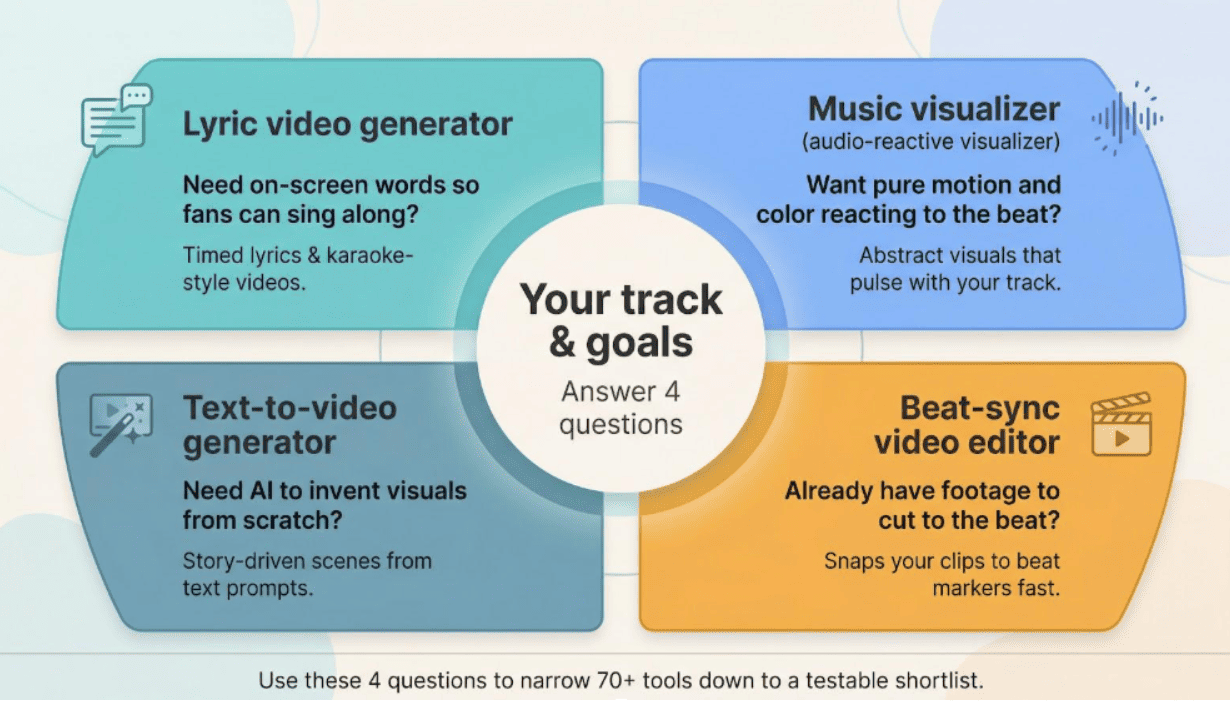
Most apps fall into four roles. Ask yourself these questions before you sign up:
1. Lyrics or pure motion?
Need on-screen words so fans can sing along? Choose a dedicated lyric video generator. Want color and movement only? Pick an audio-reactive visualizer.
2. How much control?
If you want speed, look for genuine one-click presets. If brand identity matters, pick a tool that accepts style prompts or lets you nudge timing by hand.
3. Do you have footage already?
With raw clips in hand, a beat-sync editor can cut everything to tempo in minutes. Starting blank? Use a generator that creates visuals from scratch.
4. What about budget and outputs?
Free plans often add watermarks or cap length. Paid tiers offer HD, 4K, and multiple aspect ratios, which matter if you’re planning YouTube, Reels, and a Spotify Canvas.
Answering these four prompts filters more than 70 music-video tools into a shortlist you can test in the next 20 minutes.
Answer four simple questions to narrow 70+ tools down to the right type of AI music‑video generator
Lyric-Focused AI Video Makers
Need on-screen words that land on the beat? A lyric video generator listens to your track, maps each vocal line to a timestamp, and animates the text so viewers can sing along.
Here’s the typical two-step flow:
Upload your audio file and a clean lyric sheet.
The engine detects the vocal track, builds a timing grid, and renders animated typography you can nudge if a line lands late.
One dedicated lyric video creator, Neural Frames, is a useful benchmark for what tight on-screen text can look like.
In Autopilot mode, the platform can analyze your track, generate a lyric transcript, and drop every line onto a captions timeline where you fine-tune text and timestamps while listening back, down to the millisecond.
You still choose fonts, colors, and AI backdrops, but starting from that kind of near-locked grid turns lyric styling into an aesthetic choice rather than a desperate attempt to fix late captions and it gives you a clear standard to measure more template-driven apps against.
Template-driven apps such as Rotor or Pictory favor speed over accuracy. Paste lyrics, choose a preset, and you’ll get a karaoke-style clip in minutes. They work for slower ballads; rapid-fire rap or multilingual verses can reveal timing drift.
Neural Frames Lyric Video Generator Captions Timeline Screenshot
Quick check: preview the first chorus. If any line lands more than a beat late, switch tools. Lyric sync is binary. Up next: visualizers that turn raw sound into color and motion.
Music-Responsive Visualizer Tools
A music-responsive visualizer turns raw audio into motion: it reads the waveform, detects every kick and snare, and triggers colors or camera moves on the beat.
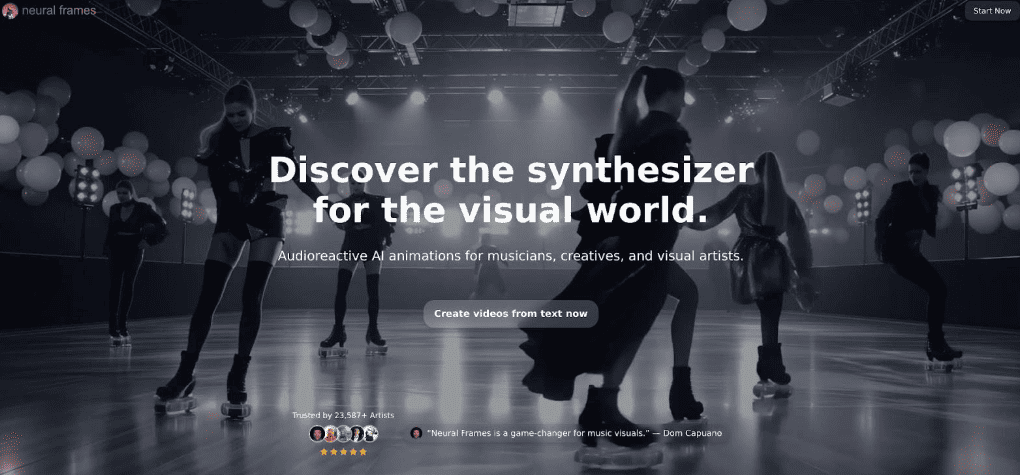
Marketing copy often repeats the same promise: Upload your track, watch art come alive. BeatViz, for instance, says it can “instantly detect the rhythm and sync visuals” as soon as you drop an MP3. Independent testing supports that claim: in Unite.AI’s February 2026 review, eight of the top ten generators earned “strong automatic beat-sync” scores, which shows that millisecond timing is now expected.
Visualizers sit on a spectrum:
Kaiber or Runway paint full AI scenes from text prompts, then let the music decide when cameras swing, or colors flip.
Beat-centric newcomers such as Vibess aim for micro-precision, firing particle bursts on every quarter note.
Classic template sites still have a place, but AI engines lead today because they provide fresh style variations instead of the familiar spectrum bars.
Quick field test: load a 30-second chorus, pick a basic “abstract” preset, and watch. If any flash lands more than a beat late, move on. Visualizers rise or fall on timing. Next up: text-to-video generators for creators who want to script every frame.
Text-To-Video Generators With Music Integration
A text-to-video engine turns written prompts into short animated clips, giving you story-driven scenes you can later snap to the beat.
Tools such as Runway Gen-2, Pika Labs, and the newer LTX Studio specialize in range. One prompt might place you in a 1930s jazz club, the next on Mars. Runway can render up to 18-second 1080p clips in about four minutes on a standard plan, which is plenty for a chorus cut.
Timing is the trade-off. These models create visuals first and rarely sense your snare hits. Most creators export three or four shots, then align them in an editor or use a separate beat-sync plug-in.
Practical workflow:
Write a one-sentence prompt, render a 10-second loop, and drop it under your chorus.
If the vibe fits, generate two or three variants.
Build a library of micro-scenes (intro, verse, hook), then trim each clip so key moments land on the downbeats.
Choose text-to-video when you want narrative freedom and don’t mind playing director and editor to lock every frame to the groove.
DIY Video Editors With Auto Beat-Sync
An auto beat-sync editor analyzes your track, drops markers on every beat, and lets you snap existing clips to those points in seconds.
Mobile standouts such as CapCut and Beat.ly make the process touch-simple: import footage, tap “Auto beat,” and markers appear on the timeline. CapCut also lets you choose marker density (every beat, bar, or custom count), so a mellow verse glides while the chorus can stutter like a DJ cut.
On desktop, web tools like Vidbeat offer the same intelligence for drag-and-drop slideshows. Upload a folder of B-roll, pick your song, and the site builds a rhythm-matched montage in under a minute. Internal tests clocked a 45-second render for a three-minute track.
These editors don’t create visuals, but they save the hours you’d spend slicing in traditional software. If you already have footage and a deadline, beat-sync editors are the fastest way to a tight, intentional cut. Up next: how to measure any tool’s timing with a seven-point checklist.
The Seven-Point Sync Checklist
Before you spend a cent, verify that your test clip stays on beat with these seven quick checks. If a tool fails more than two times, choose another.
Beat-hit accuracy. Clap along to the pulse; every cut or lyric pop should match. A repeat miss of 150 ms or more signals trouble.
Energy mapping. Quiet sections should breathe, choruses should explode. Good engines read dynamics, not just tempo.
Lyric timing. Text must appear as the vocalist starts each line; visible lag is a deal-breaker.
Micro-motion sync. Watch for subtle cues: camera bumps on kicks, color pops on snares.
Markers or timeline control. Pro tools show beat markers or a waveform so you can nudge events.
Consistency to the final bar. Scrub the last ten seconds; drift here means the BPM was misread.
Community feedback. Skim recent forum threads or reviews for timing complaints; crowds spot latency fast.
Run these seven checks on a 30-second export. A reliable generator will clear all of them in under five minutes.
The 20-Minute Test: Confirm Sync Before You Pay
Run this quick audition to decide if a platform deserves your money. Upload a 60-second slice of your song, preview once, and choose to keep or quit.
Select the snippet. Pick a verse-to-chorus segment with clear beats (about 60 seconds).
Generate with a plain style. Skip flashy filters; they can hide timing errors.
Watch twice. First with audio on, then muted to spot visual wobble.
Apply the seven-point checklist. Mark each item green or red; two reds mean move on.
Check the timeline. If beat markers are available, scrub the last bar to catch drift.
Total investment: roughly 20 minutes per platform. This mini-audit can save hours of full-song rerenders later, so only the winners advance to your final cut.
When The Beat Slips: Quick Fixes For Sync Glitches
Most timing errors need just a two-minute tweak.
Lyrics lag behind vocals. Slide the entire lyric layer 2–4 frames earlier. If the tool lacks a timeline, trim the leading 0.2 s of silence in your audio and re-upload.
Visuals land late. Many generators offer a global offset slider; nudge it, 3 to 5 frames, regenerate, then recheck.
Mid-song drift. A misread BPM often drifts after 60–90 s. Split the track at that point, generate each half separately, and join the renders.
No built-in fix? Export the video, then in any editor shift the audio track forward until cuts lock in; ±100 ms usually solves it.
Last-resort hybrid. Render backgrounds in one app, then add perfectly timed lyrics in a beat-smart editor such as CapCut.
These micro-adjustments keep every snare, flash, and word exactly where listeners feel it.
Prompt Starter Kit: Eight Genre-Tested Visual Recipes
Paste any prompt below into a generator that accepts text input (Kaiber, BeatViz, Neural Frames) and render a 10-second test clip.
Synthwave rush: Neon grid city at night, purple and cyan palette, rising sun, windows pulse on each beat, retro-anime VHS grain.
Indie journal: Warm coffee-shop notebook, aged paper texture, handwritten lyrics appear line by line, ink splatter on snares.
Festival frenzy: Massive EDM stage, crowd silhouettes jumping, laser bursts, and camera shake on kicks, high-contrast night.
Graffiti loop: Urban alley at dusk, comic-style graffiti morphs on rhythm, boombox speakers throb with bass, bold saturated colors.
Metal Storm: Jagged cliff, lightning strikes on drum hits, skeletal guitarist, black and crimson scheme, wide epic shot.
Dreamy R&B: Pastel galaxy, floating holographic hearts, slow swirl in verses, faster spiral on chorus, soft bokeh lights.
Social split-screen: Vertical montage, alternating instrument close-ups and bold lyric captions, rapid zoom every bar, popular reel filter.
Spotify canvas spin: Vinyl record on dark turntable, neon rim glow pulses on downbeat, seamless eight-second minimalist loop.
Tweak colors, subjects, or camera actions until the visuals match your track’s mood.
Exporting For Every Platform Without Losing The Groove
Match each social channel’s specs so your on-beat video stays tight after upload.
YouTube (full length). Export 16:9 at 1080p or 4K, at least 12 Mbps. Verify sync on both mobile and desktop after processing.
TikTok, Reels, Shorts (≤60 s). Use 9:16, 1080 × 1920, H.264 under 287 MB. Keep text inside the center 1,000 px to avoid UI overlap.
Spotify Canvas (loop 3–8 s, silent). Crop a smooth loop at 720 × 1280; Spotify rejects files over 10 MB, so keep compression moderate.
Facebook and X. Square 1:1 (1080 × 1080) captures more feed space. Duplicate your vertical master, then letterbox with blurred side-fill to maintain timing.
Universal tips. Always export MP4/H.264, constant frame-rate 30 fps, and run one last local play-through; the file on disk is your sync reference, not the platform preview.
Stick to these settings, and your beat-perfect video will survive most platform compression.
Rights, Licenses, And Being A Good Digital Citizen
A sync-perfect video still fails if a rights strike pulls it down, so lock these basics before you post.
Own (or clear) the audio. Covers and samples need the same mechanical and master licenses they would require in any release. AI visuals do not hide fingerprints.
Check the generator’s terms. Reputable tools grant full commercial rights to the output. If the terms claim joint ownership or perpetual training rights to your track, walk away.
Verify stock footage licenses. Some templates include third-party clips; confirm they allow monetized YouTube use and paid ads, not just “personal use.”
Steer clear of trademarks in prompts. Typing “Mickey Mouse crowdsurfing” may generate an infringing image that Disney can remove under DMCA.
Keep a paper trail. Save project files, export dates, and receipts. If a claim arises, you can show when and how the visuals were created.