How to Turn AI-Written Scripts Into Videos With AI Avatars

On this page
A training guide, SOP or product explainer often works better as a short video for people who'd rather watch than read.
Filming every version takes time, equipment and a presenter who's available whenever the content changes.
AI avatars offer another route. You adapt an existing document or AI-written draft into a script, then use a digital presenter to deliver it.
The process still needs fact-checking, editing and a final review, so here's a practical workflow with consent and disclosure checks built in.
Key Takeaways
-
Choose source material with a clear structure, then divide its main points into short scenes.
-
Match the avatar to the job: stock presenters for speed, personal avatars when a recognizable face matters and prompt-built characters for less literal formats.
-
Before publishing, check pronunciation, captions, visual accuracy and AI disclosure.
Step 1: Pick the Right Source Material
Look for a clear step-by-step or list structure, steady audience demand and a topic that won't change next month.
Onboarding guides, compliance explainers and product walkthroughs are strong starting points. Opinion pieces need more careful adaptation to keep their nuance.
Mark the sections that will become scenes. Five to seven is a manageable starting point, but let the material decide the number.
If the document covers several distinct topics, plan separate short videos rather than rushing through them.
Step 2: Reshape the Text for Speech
Written prose and spoken prose work differently, and the basics of AI video script writing apply even when you start from an existing document: a clear hook, a structured body and a defined next step.
Use headings to organize the script rather than reading every heading aloud. Split long sentences and keep one main idea per sentence so viewers can follow without rewinding.
If you use AI to draft or shorten the script, compare it with the source document line by line. Check names, figures, instructions and any claims the draft may have added.
A few edits make a script easier to deliver:
-
Explain references that depend on a link, or show the relevant visual on screen.
-
Add a short pause between ideas.
-
Note where an on-screen callout or chapter title would help.
-
Read the script aloud to catch awkward wording before generating the video.
Step 3: Choose Your Avatar Path
Many avatar videos still look like a talking head: a stiff presenter framed from the chest up with little movement or expression.
That's fine for a quick update, but longer training and compliance content benefits from a presenter with more natural delivery.
The right path depends on whether viewers need to recognize a specific person or simply follow a clear explanation.
Stock avatars
Stock avatars are the fastest route: choose a presenter, add the script and generate a sample. Test a full passage rather than a single line to judge whether the delivery suits your material.
Stock presenters also work well when several teams share one video library, since anyone can pick up the same face.
Personal avatars
A personal avatar keeps a recognizable face, such as a trainer or team lead, across a recurring series without new filming for every update.
Consent matters most here. The person represented should record their own permission, and footage filmed for another purpose is no substitute.
Prompt-built avatars
Prompt-based avatar builders create a custom human or stylized presenter from a text description.
This suits a series that needs a consistent fictional character rather than a real person. It can also help when a real person would distract from the material, such as in a safety scenario.
Whichever path you choose, decide it before building scenes. Swapping presenters later means rechecking framing, timing and gestures across every scene.
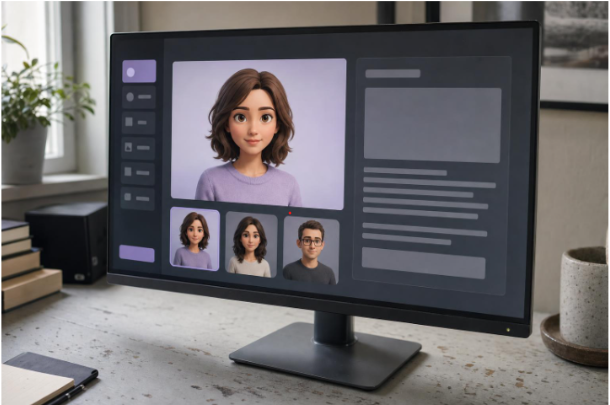
Synthesia covers all three paths and describes its generator as the world's most realistic.
Its newest model, Express-3, is rolling out in stages and is built for sharper visuals, more accurate lip-sync and body movement that follows the script more closely than earlier generations.
One G2 reviewer in employee development called its presenters "the most realistic AI avatars on the market."
The library holds 240+ stock avatars and 1,000+ voices across 160+ languages. Customizable avatars can change outfits and backgrounds or act out prompted scenes as B-roll.
Avatar Builder creates realistic or stylized characters from a prompt and is included on the free plan.
Personal avatars can be built from a single photo or a short video, with optional voice cloning.
A live on-camera consent recording is required and can't be skipped or uploaded after the fact. The platform is trusted by 90% of Fortune 100 companies.
Step 4: Choose the Voice and Language
Preview several voices using a full paragraph from your script. A brief sample can hide awkward pacing or mispronunciations.
Match the pace to the content: slower for detailed procedures and quicker for simple tips.
For another language, review the translated script before generating the video.
Names, technical terms and local expressions need particular attention, so ask a fluent speaker to check the final delivery when possible.
Review auto-generated captions against the audio before publishing. Captions help viewers who watch without sound and anyone following in a second language.
Step 5: Build the Scenes
Add the avatar to each scene, leaving room for supporting text and visuals.
A brand kit keeps colors, fonts and logos consistent, which matters when several people build videos for the same library.
Supplement the presenter with screenshots, diagrams or screen recordings when those explain a point more clearly.
Avoid filling the screen with the entire script. Short labels and key phrases are easier to follow alongside narration.
Check scene order and timing first. Then review lip-sync, pronunciation and gestures in the generated video, since that's where delivery issues show up.
Step 6: Publish Where Your Audience Already Works
A hosted player makes updates easier if it keeps the same share link or embed code.
With the platform covered in Step 3, Smart Updates refresh embedded and linked videos automatically after you edit them.
Downloaded MP4 files work differently: each revision means exporting and uploading again, and downloads require a paid plan.
For training teams, SCORM export on the Enterprise plan packages a video for an LMS. Check how your LMS handles replacement packages before relying on it for frequent updates.
For live use cases such as onboarding or support, Interactive Avatars listen and respond in real time, and you can connect your own LLM or agent.
If the video supports a written guide, embed it on that page and turn scene titles into chapter markers so viewers can jump to the step they need.
Step 7: Label the Video and Protect Trust
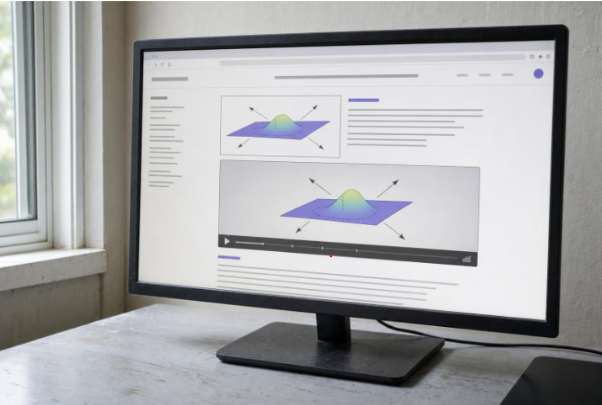
Make it clear when a presenter is AI-generated. A brief on-screen note or description line does this without distracting from the content.
Also use any AI-disclosure setting the publishing platform requires.
Legal duties vary by location, use and whether you provide the AI tool or publish its output.
The EU AI Act's Article 50 transparency obligations began applying on August 2, 2026, and California's AI Transparency Act (SB 942) became operative the same day after AB 853 moved its original start date.
Check the requirements for your situation rather than assuming every avatar video falls under the same rules.
The platform from Step 3 automatically adds C2PA metadata to videos generated or modified on it, shows Content Credentials in its player and offers pre-built visible labels.
It also lists ISO 42001, ISO 27001, SOC 2 Type II and GDPR compliance, which matters in regulated industries. Provenance metadata supports transparency but doesn't replace a visible disclosure, so confirm it survives your export and upload.
Step 8: Measure and Improve
Watch time and completion rate reveal pacing problems. Built-in analytics track views, watch time and completion rates, so you can see where viewers drop off.
If they consistently leave during one scene, check whether it runs too long, repeats earlier material or needs a clearer visual.
Compare language versions separately, because delivery and audience expectations can differ. Revise the affected scene rather than rebuilding the whole video.
Keep the approved script, source document and publication date together so you know which versions need changes. The format holds up for learning, too.
A study of 500 adult learners by UCL researchers, run with an AI video company, found no statistically significant difference in recall or recognition between an AI avatar video and a human instructor video.
FAQ
Can a personal avatar be made from existing footage?
It depends on the tool. The platform covered above builds personal avatars from a photo or short video, but it requires a live on-camera consent recording that can't be uploaded afterward.
How should an avatar video be disclosed?
Use a brief on-screen or description note plus any disclosure setting the platform requires. Provenance metadata supports transparency, but it doesn't replace visible labeling.
From Draft to Presenter
AI avatars give existing content another format, but the script still does most of the work. A focused explanation, useful visuals, accurate captions and clear disclosure matter more than elaborate presentation.
Treat the first video as a test of clarity and pacing, then use viewer data to improve the next one.
Related Articles
 How AI Changes the Way We Create Videos and Other ContentAI tools have transformed content creation by enabling faster, more automated workflows—from writing and image generation to video production. While these toolsAnkit Agarwal6 min read
 AI animal contentEmerging AI Trends for Creating Viral Animal ContentDiscover the emerging AI trends transforming animal content creation. Learn how to use AI tools for generating viral videos, images, and stories that engage audiences and boost social media reach.Pratham Panchariya14 min read
- From Script to Screen: Using AI to Write Engaging Video ScriptsLearn how to use AI tools like Gracker.ai to brainstorm, write, and polish engaging video scripts for any platform or content type.Ankit Agarwal5 min read
- online faxHow to Fax From an iPhone in 2026 (No Fax Machine, No Landline)Scan the page in Notes, then send it with a fax app like Fax.Plus or the free FaxZero site. Steps, free limits, HIPAA rules and fixes for failed faxes.Ankit Agarwal10 min read